System Mechanic Professional®
For up to 3 PCs
Fix, Speed Up and Secure Your PC ...Automatically
Purchase online: Questions?
Enlarge
Was $69.95
   
$49.95 Save $20.00
#1 Bestselling
over 22 million users
11 years of tune-up
product focus
Up to 3 PCs
Free product help
unlimited support
64*/32-bit Windows
7/Vista/XP/2000

Standard or Professional edition?


Which is the right solution for you?


Keep your PC running faster, cleaner and error-free. System Mechanic's award-winning tools fix stubborn errors, clear out clutter, optimize internet and download speeds, ensure personal security and maintain your computer at peak performance automatically.

Standard Features:
  • Optimize your PC for peak performance
  • Repair problems and errors, and prevent them from recurring
  • Clean up system clutter
  • Fix security vulnerabilities
  • Maintain reliability and speed
Compare all iolo products
$39.95
Regular price: $49.95
Save $10.00
Professional Features:
  • Optimize your PC for peak performance
  • Repair problems and errors, and prevent them from recurring
  • Clean up system clutter
  • Fix security vulnerabilities
  • Maintain reliability and speed

Plus...


  • iolo AntiVirus - protect against viruses, worms, trojans, and other threats
  • iolo Personal Firewall - protect against hackers, internet intruders and other unwanted communication
  • Search and Recover - recover accidentally deleted files, photo, email and more from any drive or media
  • DriveScrubber - secure erase data from your hard drive
Learn more
$49.95
Regular price: $69.95
Save $20.00

System Mechanic Professional® gives you
more PC tune-up power

  System Mechanic® 9 Professional Norton
360™
Fix-It
Utilities
Pro 9™
TuneUp Utilities 2009
Repair Problems        
Repairs registry problems
Repairs hard drive corruption
 
Emergency CD revives downed systems
   
Reconnects invalid broken shortcuts      
Tune-up Definition updates identify latest problem types and performance threats 9      
Automatically maintains PC with patent-pending ActiveCare® technology      
Speed up PC        
High-speed, single-file, and low-level & drive defragmentation      
Automatically accelerates PC startup 19 ways
     
Boosts internet speeds up to 300%
   
Defragments and recovers memory in real time      
Compacts and defragments registry    
Turns off unused background programs for instant speed boost 9      
Windows Cleanup        
Cleans over 50 different types of junk files      
Removes invalid uninstallers and programs
     
Wipes internet history, clutter & cache with military-strength methods
9      
Security & Privacy        
Certified virus, rootkit & worm protection
 
Hourly virus protection updates
     
Fixes dangerous settings to prevent intruders and attacks
   
Blocks hackers and internet intruders
 
Up to 9999-pass military-strength file wiping
     
Automatically blocks dangerous or unwanted programs & configuration changes    
Wipes internet & chat history, clutter & cache      
Customization & Reports        
Customize hundreds of hidden Windows settings    
Windows Vista/7 gadget provides instant PC health status and one-click tool access
9      
Detailed system configuration reports
 
Full undo capability with historical logs
   
Real-time data on hard drive health status
     
9 = New to version 9
Analysis believed accurate based on research performed June 30, 2009. List of features is not exhaustive. All trademarks are property of their respective owners.

Critics rate System Mechanic #1

Tech Awards Circle

System Mechanic 9 wins silver award in the Consumer / SOHO Software of the Year category; Noah T. Rowles, CEO wins gold award in the Executive of the Year category

Awarded by Tech Awards Circle

Recommended by PC Utilities

System Mechanic 9 named the all-in-one solution to PC performance problems

Awarded by PC Utilities (UK)

PC Plus Editor’s Choice

System Mechanic 9 receives The Editor’s Choice award for its effectiveness, depth of tools and improvements in PC performance

Awarded by PC Plus Magazine (UK)

MicroMart Editor’s Choice

System Mechanic 9 received 9 out of 10 stars for quality and value

Awarded by MicroMart (UK)

Best Places to Work in LA

iolo named one of the Top 50 Best Places to Work in LA from among 10,000 companies operating in greater Los Angeles

Awarded by Los Angeles Business Journal

American Business Awards: The Stevies

iolo crowned Fastest-Growing U.S. Company of the Year, up to 2500 employees. Also: Noah T. Rowles, CEO selected as finalist in the U.S. Executive of the Year - Computer Software category

Awarded by American Business Awards

Government Computer News Reviewer’s Choice

System Mechanic awarded A+ rating and Reviewer’s Choice designation

Awarded by Government Computer News

PC Magazine UK

System Mechanic awarded 5 out of 5 stars

Awarded by PC Magazine UK

Network World

System Mechanic named a Cool Tool and awarded 5 out of 5 stars

Awarded by Network World

LAPTOP Magazine Best Gear for the New Year

System Mechanic Professional was given the award of Best Gear for the New Year

Awarded by LAPTOP Magazine

Computer Shopper Hot 100

System Mechanic Professional is recognized as the Best in Tech 2007: Best Utility Suite

Awarded by Computer Shopper

LAPTOP Magazine Editor's Choice

System Mechanic Professional is awarded LAPTOP Magazine Editor's Choice

Awarded by LAPTOP Magazine

Five Star Rating

System Mechanic receives a 5-star rating

Awarded by BestVistaDownloads

PC Utilities Editor’s Choice

Search and Recover™ is given the Editor’s Choice award from PC Utilities

Awarded by PC Utilities

Computer Shopper Best tech of 2006 edition

System Mechanic® Professional wins Best Utility Suite

Awarded by Computer Shopper

PC World recommends Search and Recover™

“Recommended” rating is given to Search and Recover™ by PC World editors

Awarded by PC World

Deloitte Technology Fast 50

Placed for the third year on the Technology Fast 50

Awarded by Deloitte & Touche LLP

TopTenREVIEWS Silver Award

System Mechanic wins TopTenREVIEWS Silver Award

Awarded by TopTenREVIEWS

Amazon.com Software Bestseller

System Mechanic attains #1 ranking of overall software sold through the major online retailer

Awarded by Amazon.com

CNET Editor's Choice

System Mechanic Professional wins coveted CNET Editor's Choice Award

Awarded by CNET

ZDNet Editors' Pick

System Mechanic Professional wins ZDNet Editors' Pick

Awarded by ZDNet

PC Magazine Editors Choice Award

Search and Recover wins PC Magazine Editors Choice Award

Awarded by PC Magazine

PC Computing 5-Star Pick

System Mechanic receives a 5-star rating

Awarded by PC Computing

Home Office Computing Gold Award

System Mechanic wins HOC Gold Award at COMDEX 2000, unseating incumbent Norton SystemWorks

Awarded by Home Office Computing

Top 10 Products of 2004

CNET picks System Mechanic Professional as on of the Top 10 software products of 2004

Awarded by CNET

Best of Class Utility

Macro Magic is titled best of class for utilities and enhancements

Awarded by Windows Magazine

Five Star Rating

Snapfiles gives System Mechanic a 5-star rating

Awarded by Snapfiles

Utility of the Month

System Mechanic is named Utility of the Month by PC Upgrade

Awarded by PC Upgrade

Top Ten Software

System Mechanic Professional is among the top ten software titles of 2003

Awarded by Small Business Computing

22 million users can't be wrong

Page: 1 2 3 4 5 6 7 8 9 10  ... 49  
"I bought the original System Mechanic and thought it could never be improved upon, but you seem to have outdone your earlier work and made a truly remarkable upgrade."Jerry W., Ph.D.
"Fantastic product. Does not conflict with other software. Works extremely well. Saves me from having to maintain my PC. Many thanks."Rik B.
"System Mechanic saved me from having to purchase a whole new computer. Well worth the investment!"Arthur H.
"This product is one of the very few that I have found to actually improve performance rather than slow it down."Stephen J.
"Just keep up the good work. I have passed on your website to many friends and recommended them to buy your products."Kenny L..
"It took about 4 hours but it repaired my system and I cancelled my Geek Squad appointment. All I needed after your product did it's job was a dust clean out."Tennie K.
 
"System Mechanic has become my tech of choice to keep this novice's computer running smoothly. I really appreciate the program and the service when needed."Mark J.
"I was having trouble with my pc and calling my products tech center only frustrated me. I subscribe to PC World and remembered that they recommend products and sites. Went to their site and there was a link to your web site and product, so I downloaded the free trial version. After it FIXED my problem, I decided to purchase it so I could always rely on having it at hand! Thank you for a wonderful product! It really helped me today, found and fixed things I didn't even know were wrong, too! I'm going to recommend your System Mechanic to all my friends!"Barbara H.
"This is a great service. I cannot wait to purchase more stuff from iolo!"Ashley B.
"Norton watch out!! - System Mechanic Professional is a great value! It offers a wide range of superb features that keep my PC running in top shape. The 3 PC licenses allow me to cover my home network PCs."Kenneth L.
Page: 1 2 3 4 5 6 7 8 9 10  ... 49  

Watch System Mechanic 9 Professional in action

Optimize Windows Startup

Speed up PC startup times


Learn how to clean and optimize Windows startup processing. Removing unneeded bottlenecks and accelerate PC speed.

System Mechanic analysis and repair

Fix and speed up PC automatically


See how System Mechanic analyzes your PC and then automatically runs the specific repairs and optimizations that are needed.

Memory Mechanic®

Reclaim valuable system memory


Learn how to defragment memory with Memory Mechanic. Reclaim valuable memory and improve PC efficiency, stability, and speed.

Total Registry Revitalizer™

Run all-in-one registry care


Learn how to run Total Registry Revitalizer, a new all-in-one tool. Keep your PC's most critical component - the registry - protected, clean, and error-free.

NetBooster®

Boost internet speeds


Learn how to run NetBooster. Automatically tailor Windows settings to suit your PC and experience faster and more reliable internet access.

Streamline PC processing™

Streamline PC processing


Learn how to run EnergyBooster, a new performance tool. Give your PC an instant boost in speed by turning off unused background processes.

Defragment Hard Drive

Increase drive reliability and speed


Learn how to defragment your hard drives. Boost the speed and efficiency of programs and extend drive life.

PC Cleanup

Clear out the clutter


Learn how to run PC Cleanup to clean out the unneeded files that clutter your computer and overtax its resources.

DriveScrubber®

Securely wipe away deleted data


Learn how to securely erase data you’ve deleted, beyond all recovery. Since all your existing files and programs are left intact, this feature is ideal for regular security maintenance.

Search and Recover™

Recover accidentally deleted photos


Learn how to get back deleted photos using one of System Mechanic Pro’s five built-in data recovery tools. Rescue the cherished files you thought were gone forever.

iolo AntiVirus™

Scan your PC for viruses


Learn how to quickly scan a selected file or folder for viruses, worms, and other malicious software. An ideal safety check for newly installed applications and files downloaded from the internet.

iolo Personal Firewall™

Set up a barrier against internet threats


Learn how iolo’s Firewall Setup Wizard makes firewall configurations easy. You’re guided step-by-step with simple questions about your PC usage and preferences, for firewall protection tailored to your computing style.

Screenshots

Enlarge
Dashboard
Enlarge
Problems
Enlarge
Automated Tasks

Internet Security
Enlarge
All-in-one Tools

Individual Tools

IntelliStatus
Enlarge
Reports

Intelligence-based PC Tune-up: exclusively for iolo subscribers

         One-size-fits-all approach used by other “utility” and “cleaner” programs can’t adapt.

Tune-up Definitions give System Mechanic the expert knowledge to precision-tune your PC using the latest up-to-date scientific research released from iolo Labs.

How Tune-up Definitions™ work

1.

iolo Labs collects critical performance information from millions of computers globally.

2.

iolo Labs analyzes data for trends affecting performance, compatibility, optimization, and repair techniques - released as Tune-up Definitions.

3.

An active System Mechanic Service Plan gives you access to the constant flow of Tune-up Definition updates -- automatically delivered to your desktop on a regular basis.

Tune-up Definitions teach System Mechanic about the latest PC performance issues as they manifest and evolve in real time, keeping the product agile, safe, and powerful.

Eliminate the top 5 PC performance drains with System Mechanic

Have you noticed that the longer you've had your computer, the slower it's gotten? iolo researchers have identified the top 5 causes of PC slowdowns and bottlenecks:

  • Fragmented hard drives
  • Cluttered startup
  • Unoptimized internet settings
  • Fragmented and bloated registry
  • Fragmented memory

With System Mechanic, you can eliminate these performance drains and adapt PC settings for optimal performance. Your programs will launch quicker, work faster, and perform with greater reliability.

POWER TOOL [Toolbox > All-in-one Tools > PC Accelerator]
"PC Accelerator" includes all five of the most critical fixes: defragmenting hard drives and memory, defragmenting and compacting the registry, and optimizing your Windows startup and internet settings (each repair is described in detail below).

The simple, 2-step wizard provides recommendations based on your PC's condition and then runs all the repairs and optimizations at once.

INDIVIDUAL TOOLS [Toolbox > Individual Tools > Increase Performance]
To run the specific fixes that you want, you can choose from the individual repairs in the "Increase Performance" category:

  • DEFRAGMENT HARD DRIVES
    Defragmenting drives reorganizes scattered data so that file components are stored closer to each other - the movement of mechanical parts is minimized and Windows can more quickly access and open files. The process boosts drive speed, prevents data corruption, and extends the life of drives.

  • OPTIMIZE WINDOWS STARTUP
    Various programs and services are set to open every time Windows loads. While some of these programs perform critical functions, many are just needlessly slowing down the startup process. Eliminating unwanted programs from startup is one of the most effective ways to speed up a PC. Your computer starts up faster and, by reducing the number of programs loaded in memory, your computer runs faster, too.

  • OPTIMIZE INTERNET SETTINGS
    When Windows is installed, the default settings are not necessarily optimized for your specific Internet connection - this can prevent you from reaching maximum download and upload speeds. System Mechanic's NetBooster® technology enables the transfer of more data over your existing connection, resulting in faster and more reliable access. Many people experience increases in speed of up to 300% after running these optimizations.

  • DEFRAGMENT AND COMPACT THE REGISTRY
    As you make system changes and your PC's registry grows, the registry becomes fragmented and overly large. Regularly defragmenting the registry restructures data so that Windows can access what it needs faster, while compacting eliminates the bloated and unused space in the registry. The processes work together to speed program access, improve overall system efficiency, and free up vital memory.

  • DEFRAGMENT MEMORY
    Defragmenting memory reclaims and frees up valuable memory, which can have a dramatic impact on speed. Defragmenting the memory can also improve the stability of your computer as low memory is a common cause of computer crashes and lockups.

Boost speed with System Mechanic

Did you know that one of the major causes of PC slowdowns are programs automatically starting every time you turn on your computer?

While certain programs (such as antivirus protection) should automatically start when your computer is turned on, many programs are just unnecessarily slowing down your PC. Some may be programs that you're not using, software that you didn't even know was installed, or dangerous files running without your knowledge - all loading every time you start your computer.

The System Mechanic Solution
Clearing out unnecessary startup settings removes this bottleneck and is one of the most effective ways to speed up your PC. Your computer starts up faster and, by reducing the number of programs loaded in memory, your computer runs faster, too.

System Mechanic offers three tools to help you manage the startup processing on your computer:

  • The Optimize Windows Startup tool uses a wizard to guide you through removing unneeded startup settings. You can choose to completely automate the removal of items from startup, or you can view a list of potentially unneeded startup items and choose which ones you want to remove.

    [TO ACCESS: Toolbox> Individual Tools > Increase Performance > Optimize Windows Startup]

  • For advanced users, the Configure Windows Startup tool lists all the items currently configured to start when Windows loads. You can enable, disable, or delete startup items; view detailed file descriptions and properties; create startup profiles; and more.

    [TO ACCESS: Toolbox > Individual Tools > Manage System Configuration > Configure Windows Startup]

  • For continual upkeep, we recommend that all users enable ActiveCare to automatically remove unneeded items from startup as soon as they're detected.

    [TO ACCESS: ActiveCare > Automated Tasks > Automatically optimize startup configuration]

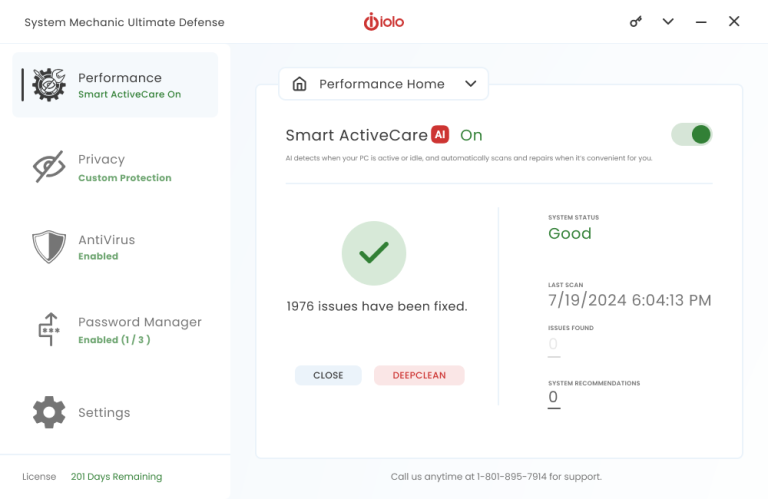
ActiveCare - Automatically Fix and Maintain Your PC

What ActiveCare Is
iolo's patent-pending ActiveCare™ technology maintains PC health by monitoring performance behind-the-scenes and then automatically running the repairs the computer needs. ActiveCare is found in System Mechanic and System Mechanic Professional.

Not a scheduler, ActiveCare is a key distinguisher in the PC utility market; no other product offers this advanced level of active and intelligent maintenance. And new to version 8, ActiveCare 2.0 uses proprietary ZeroRAM™ technology so processing takes up even less system resources.

How ActiveCare Works
While your computer is on but not in use, ActiveCare checks the PC's condition and compares it to established performance standards. If a problem is detected, ActiveCare then automatically runs the appropriate repair. By only running the fixes that are needed and only running when your computer is idle, ActiveCare silently monitors and repairs your computer without ever interrupting your work.

How You Use ActiveCare
You control the automated actions that ActiveCare runs by making selections from the Automated Tasks pane.

  1. Under ActiveCare on the navigation bar, click Automated Tasks.
  2. Click the toggle button next to a task to Enable or Disable the automated repair.

With ActiveCare, you can automatically:

  • Clean and repair the registry by removing obsolete and invalid references
  • Automatically defragment and compact the registry on an as-needed basis
  • Streamline Windows startup by eliminating unneeded startup commands
  • Clean out unneeded files when system clutter becomes excessive
  • Adapt internet settings to boost internet speed and stability
  • Repair security vulnerabilities in operating systems and browsers
  • Detect and repair hard drive errors
  • Defragment hard drives when drives become highly fragmented
  • Defragment the system's memory when memory is low
  • Detect and repair broken shortcuts
  • Automatically back up the registry on a recurrent basis

Additional configurations allow you to fully customize when ActiveCare runs - you can control ActiveCare processing based on scheduled times, battery power usage, CPU usage, full screen mode for gaming/videos and more; to access these settings, click Configure from the Automated Tasks pane and then click Edit Advanced Options.

Fix PC errors and corruption with System Mechanic

Over time and with regular usage, a computer can slowly degrade and become corrupted and unstable. Use System Mechanic's PC repair tools to diagnose and fix hundreds of problems with hard drives, system components, software, and hardware.

POWER TOOL [Toolbox > All-in-one Tools > PC Repair]

  • The PC Repair Power Tool is one solution that fixes the most common causes of crashes and system failures.

INDIVIDUAL TOOLS [Toolbox > Individual Tools > Repair Problems]

  • Repair Registry Problems.
    Over time, the Windows registry can become corrupt, leading to degraded performance and system crashes. Removing invalid and obsolete data references cleans and streamlines the registry.

  • Repair Broken Shortcuts.
    Broken shortcuts occur when the target files have been moved or deleted. Repairing these shortcuts speeds processing and eliminates unexpected errors.

  • Repair Hard Drive Problems.
    A damaged hard drive can prevent files from being accessed or saved and can cause system crashes. Repairing hard drive errors protects your data and improves overall PC stability.

  • Repair an Unbootable PC.
    Use this tool to create an emergency "Drive Medic" CD to use if your computer ever suffers severe damage, such as the operating system failing to load.

  • Troubleshoot System Problems. If your PC has become unstable or unusable, it can be hard to know where to start with repairs. Use this feature to read recommended solutions and access the tools (both System Mechanic and Windows tools) that can help you regain stability.

ACTIVECARE [ActiveCare > Automated Tasks]

ActiveCare monitors performance behind-the-scenes and then automatically runs the repairs your PC needs. Automated repair options include:

  • Automatically repair registry problems
  • Automatically repair hard drive errors

Deleting files the secure way: Q & A

Why isn't just deleting a file enough?
Many believe that when a file is deleted, it is permanently erased. In actuality, the data within the file still remains on the drive; this is because of how the Windows operating system saves and deletes files.

  • When you save a file, your PC stores the name of the file in a file allocation table. The data that actually makes up the file is saved directly on the computer's drive.

  • When you delete a file, your PC removes the file reference from the file allocation table, but the data still remains on the drive. The space occupied by that data is marked as free space and is available for overwriting by other newly saved files. But until another file's data is saved over it, the deleted data remains.

Even though you can't see the file, someone using easily available software tools can recover the file and view its contents. To securely erase files so that they can never be recovered, a data wiping tool should be used.

Doesn't formatting a drive erase data?
Formatting a drive does not erase data. Formatting erases file allocation information and performs other housekeeping functions for data storage, but the process does not erase or wipe data.

How does secure data wiping work?
Data wiping tools work by overwriting deleted data with random characters.

Each overwrite pass causes the data that previously occupied the location to become less "bright" than the random data that now rests on top of it. As you increase the number of overwrite passes, the less chance there is that the data is recoverable. Some advanced methods can read up to seven layers down, which is why the U.S. Department of Defense standard is seven overwrite passes.

The DriveScrubber approach: Included with System Mechanic Professional
DriveScrubber® gives you the flexibility of tailoring the patterns used in the overwrite passes and lets you select the number of passes-you can choose the Department of Defense standard of seven overwrite passes or, for the utmost in security, overwrite data up to 100 times. DriveScrubber also has a range of flexible, advanced options that allow you to pause, cancel, and resume a wipe in progress, create log files, run a final wipe of all zeroes and more.

Further, DriveScrubber offers dual protection for permanent data removal: you can completely wipe all the contents from a drive or device OR you can erase just the remnants of previously deleted files. Both options meet or exceed the standards of the U.S. Department of Defense.

  • DriveScrubber can wipe the entire drive to completely erase all data. People find this useful if they want a "like new" drive after virus damage or if they are giving away their computer or device and want absolutely no data to remain.

  • DriveScrubber can wipe only the free space to thoroughly erase the remnants and tracks left by deleted files. Existing files, programs and the operating system are all left in intact. People find this useful for regular computer maintenance and security.

DriveScrubber is one of five award-winning products included with System Mechanic Professional!

10 Steps to Maximizing Your Antivirus Protection

Using an antivirus program is one of the simplest and most effective steps you can take to protect your computer. Antivirus software monitors your computer and automatically blocks and removes computer infections, preventing them from causing damage or spreading further.

However, installing an antivirus is just the first step to securing your computer. To get the most protection out of your antivirus, follow these ten best practices:

1. The most important step you can take is to keep the virus definitions for your antivirus current. Ideally, your antivirus automatically checks for updates, but if not, manually check once a day.
2. Do not install more than one antivirus. Having multiple antivirus products installed leads to software conflicts, which can cause system crashes and reduce antivirus protection.
3. For a constant watch over your computer, keep the "real-time" scanning feature enabled and configure it to enable every time you start your computer.
4. If you need to temporarily disable the antivirus to install trusted software, make sure that you enable it when the installation is complete and then run an "on-demand" scan of the new files.
5. Though internet downloads are the frequent culprit, even commercially distributed and shrink-wrapped software has been found with viruses. For the best defense, scan all new software.
6. Set your antivirus to perform scheduled scanning at regular intervals, ideally no less than weekly.
7. The most common way that computers get infected with viruses and worms is through email. Set your antivirus to scan both incoming and outgoing email messages.
8. Disable any features in your email program that automatically execute JavaScript, Word macros, or other executable files.
9. Regularly back up your critical files so that you're prepared in case of a disastrous infection.
10. Supplement your antivirus with a firewall and spyware removal software.

iolo AntiVirus is one of five award-winning products included with System Mechanic Professional!

10 Steps to Maximizing Your Firewall Protection

A firewall installed on a computer provides a critical layer of protection and has become a must-have tool for any user accessing the web. A firewall puts up a barrier against hackers and other intruders, while allowing the internet access that you do want.

However, installing a firewall is just the first step to securing your computer. To get the most protection out of your firewall, follow these ten best practices:

1. Open only the ports that you need. Certain ports must be open for routine network traffic, but an open port can also be a potential entrance for an attacker.
2. Block rarely used ports and protocols when you are not using them, such as those for internet chats and peer-to-peer networking.
3. Disable or uninstall any programs and services you are not using. Your operating system may have unused services enabled by default, which can be a gateway for intruders.
4. Read the information provided in firewall prompts and take the time you need to make a decision.
5. Deny access to a program if you are not sure about it; you can always make configuration changes later if you need to.
6. Do not turn off firewall message alerts. If you are seeing too many alerts, fine-tune the settings in your firewall so that access for the programs, sites, and computers that you trust is automatically allowed.
7. Keep your firewall configuration as simple as possible and remove any unnecessary or redundant rules and policies.
8. Regularly monitor your firewall's activity and event logs for any suspicious activity.
9. Periodically check with your firewall's vendor to see if any patches or updates are available. Ideally, your firewall will have automated updating features integrated into the software.
10. Supplement your firewall with antivirus and spyware removal software.

iolo Personal Firewall is one of five award-winning products included with System Mechanic Professional!

Frequent questions

Q. What is the difference between System Mechanic® and System Mechanic Pro®?

A. System Mechanic Professional includes all the tune-up functionality of System Mechanic plus 4 more award-winning iolo products, all for one low price.

System Mechanic Pro gives you System Mechanic, plus it includes iolo AntiVirus, iolo Personal Firewall, DriveScrubber® (with additional advanced data removal functions), and Search and Recover™ (which recovers previously lost or deleted data).

Compare iolo products

Q. On how many PCs can I use System Mechanic?

A. The license allows you to install System Mechanic on up to 3 PCs.

Q. What is iolo's support policy?

A. iolo offers unlimited and free technical support.

In an age where paid or time-limited product support is the norm, we break the mold by offering unlimited telephone and email technical support, all at no cost.

Q. What operating systems does System Mechanic work with?

A. Windows 7, Windows Vista, Windows XP, and Windows 2003 Server.

System Mechanic is designed to work on Microsoft Windows Vista, XP, and 2003 Server operating systems and has been tested to work on the latest releases of Windows 7. System Mechanic is both 64-bit and 32-bit compatible.

Q. Is a free trial available?

A. Yes, System Mechanic offers fully-functional trial versions here

System Mechanic trial versions allow you to try out all the features for a limited time. After your purchase, we'll instantly email an Activation Key to you, transforming your trial version into fully licensed software.

Go to the free trial download page

Q. What is the advantage of the System Mechanic service plan?

A. The service plan provides customers with free ongoing product enhancements (including major version upgrades) and the latest Tune-up Definitions™ from iolo Labs.

Learn more about these advantages

Q. How is System Mechanic delivered after I purchase?

A. You can choose instant download delivery, a shipped box with CD, or both.

You will receive complete download and activation instructions by email instantly after you purchase from the iolo web site. Additionally, you may add a physical box with a CD to your order so you always have a backup on hand.

Q. Can I get a discount on multiple years of System Mechanic service to save money?

A. Yes, you will have the option to upgrade to a discounted multiple year service during purchase.

Q. Can iolo automatically renew my System Mechanic service so I don't have to?

A. Yes, you will have the option to select an auto-renewing service during purchase confirmation.

This is a convenient service provided to our customers who value uninterrupted peak performance without having to remember to add time themselves.

Q. Can I purchase a license for more than three PCs in my business or organization?

A. Yes, iolo also offers System Mechanic for 10, 25, 50, 75, 100 or more PCs as well.

Learn more about System Mechanic Business

Q. What is iolo's return policy?

A. iolo offers a money-back guarantee.

Read our return policy

More questions?

The Customer Care site at www.iolo.com/customercare is a one-stop resource for all your product questions:

  • A searchable Knowledge Base with product tutorials and frequently asked questions.
  • Online help systems with detailed instructions on all product features.
  • Online contact forms to send specific questions directly to Customer Care.
  • Access to all iolo product services, including downloads and subscription renewals.

Was $69.95
   
$49.95 Save $20.00